3.2. Cutter replacement and calibration
3.2.1. General description
The calibration menu can be accessed via the SERVICE menu available on the welcome screen.
Three independent options are available:
- Cutter replacement and calibration – the complete procedure including the removal of the worn cutter and installation of a new one, followed by the calibration process.
- Calibration using the current cutter – procedure without the need to replace the cutter.
- Details of the last calibration – display of the saved calibration procedure parameters.
A detailed description of the complete procedure (including cutter replacement) is provided later in this chapter.
The calibration procedure using the current cutter follows the same steps, with the following differences:
- processes related to the disassembly and assembly of the cutter are omitted
- the cutter wear counters are not reset.
The calibration option using the current cutter should be used if there is a noticeable deterioration in machining accuracy despite the cutter being in good condition.
Warning
If the user brakes any of the processes during calibration, the procedure will be canceled and it will be necessary to start from the beginning with a new blank key.
Danger
It is not allowed to mill profiles after replacing the cutter without performing a full calibration and recording its results. This results in inaccurate dimensions of the milled profiles and the risk of damage to the cutter.
3.2.2. Necessary tools and materials
The following tools (included with the machine in the accessory box) and materials are required to perform the procedure:
- new X-KEY cutter
- 3 mm diameter locking pin
- 2.5 mm Allen key
- special blank key with the number "1" stamped on it, 2.45 mm thick
- brushes
Info
If the calibration procedure is carried out without replacing the cutter, a special blank key with the number "1" stamped on it must also be used.
3.2.3. Initiating processes
At the start of the procedure, the following initial processes are started automatically:
- referencing,
- quick test of the measuring probe,
- checking the presence of the key in the scanning unit.
If any irregularities are found, a warning message with a description of the problem will be displayed.
A detailed description of the individual processes can be found in chapter 2.3. Axis movement functions.
3.2.4. Installation of a new cutter
The machine will set the milling unit to the service position and display a message asking you to attach a new milling cutter. At this point, perform the following steps:
1.
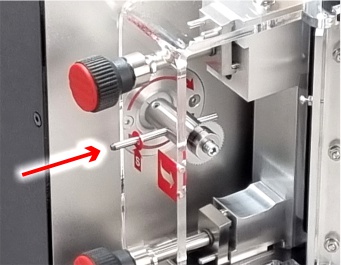
Insert the locking pin into the milling socket cover at the location marked with a red sticker with the letter 'S', and then insert it further into the through hole in the spindle (it may be necessary to turn the spindle manually to achieve the correct position). When correctly seated, the locking pin should pass completely through the hole in the spindle and protrude beyond the outer contour of the milling slot so that it is supported.
2.
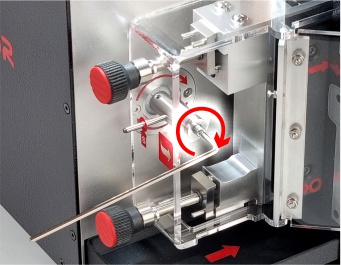
CAUTION! The cutter retaining screw has a "LEFT" thread; to unscrew it, turn the Allen key to the right (clockwise). Unscrew the cutter retaining screw and its pressure element with a 2.5 mm Allen key. After unscrewing the screw and removing it together with the pressure element, carefully slide the cutter out of the spindle locking element. Dispose of the worn cutter.
3.
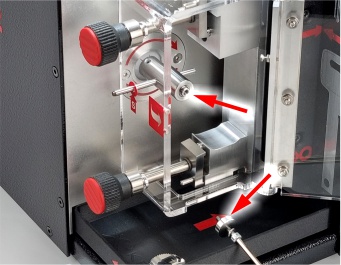
Clean thoroughly with a brush the parts removed from the machine (screw with spring washer and pressure piece) and the spindle tip where the cutter is mounted.
4.
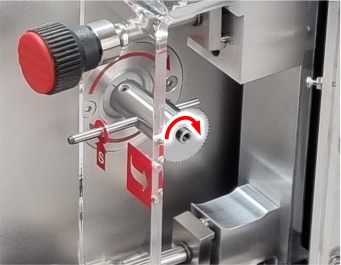
The new X-KEY cutter should be gently inserted onto the spindle locking element. Pay attention to its correct orientation and the direction of the teeth – the direction of the arrows engraved on the cutter must correspond to the red arrows located at the back of the milling slot (the cutter rotates to the right and its teeth must also be pointing in this direction).
5.
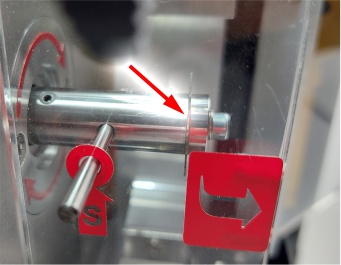
Before proceeding, make sure that the cutter is properly seated on the spindle stop and that its rear side is completely flush with the spindle plane.
6.
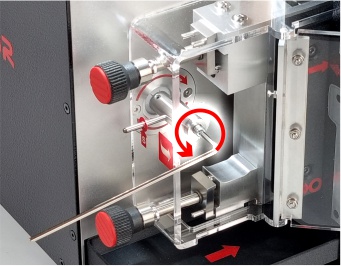
Screw the screw with the spring washer back in place with the pressure element attached, turning it to the left (counterclockwise). Use sufficient force to tighten the screw so that the new cutter and pressure element are locked in the correct position. Do not use excessive force to avoid damaging the cutter elements.
7.
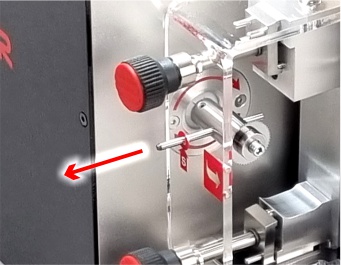
Remove the locking pin from the machine and make sure that all steps have been carried out correctly and that no objects are left in the milling slot. Only then can you close the milling slot cover and select the option to continue on the control panel.
8.
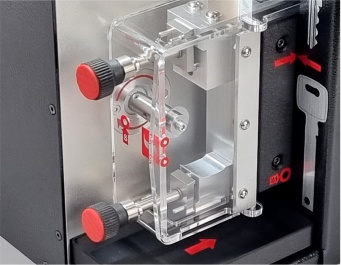
The machine will display a reminder to remove the locking pin. Make sure that this has been done before confirming the message.
Warning
Leaving the locking pin in the service hole or spindle is not allowed and will damage the machine.
3.2.5. Placing the blank key in the milling unit
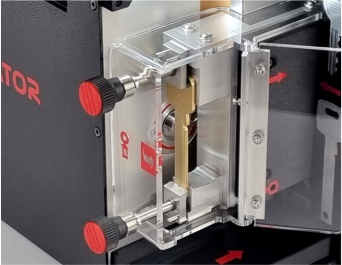
The machine automatically sets the milling unit in a position that facilitates the installation of the blank key.
The blank key must be installed according to the procedure described in chapter 1.5. Milling unit. After installation, confirm that this step has been completed on the control panel.
Info
For this process, use a blank key marked with the number "1" stamped on the head. These are selected blanks whose use ensures correct calibration results.
Warning
The use of a blank key other than those specifically designed for calibration may lead to incorrect results and thus negatively affect the accuracy of the key profile reproduction.
3.2.6. Measurement and verification of the blank key
The measurement is performed automatically. During this process, the machine uses a rotating cutter to determine the position and dimensions of the blank key.
After completing the measurement, the machine verifies the results and, if they are within the acceptable range, proceeds to the next process.
Warning
If the measurement results are outside the acceptable range, a warning will be displayed. It is recommended to cancel the procedure and start it from the beginning to verify that all steps have been performed correctly and in accordance with the instructions.
3.2.7. Calibration milling
Calibration milling is a fully automatic process and is performed on both sides of the key without user intervention. The current progress is displayed on the control panel screen.
After milling is complete, the machine will automatically set the milling unit in a position that facilitates key removal and display an appropriate message. Remove the key and confirm the message on the screen to proceed to the next step.
Info
At this stage, do not place the milled key in the scanning unit.
Warning
Opening the milling slot cover or canceling the process on the control panel will brake the calibration procedure. In this case, the blank key cannot be reused!
3.2.8. Scanning unit control
The scanning unit check is used to verify the technical condition and cleanliness of the components responsible for measurement during the calibration procedure.
This process uses the scanning unit testing function described in chapter 3.3. Tests and diagnostics, with the difference that after the test is completed, it is possible to proceed to the next stage instead of repeating the test.
Warning
If the test values exceed the permissible range and the user decides to continue, a warning message will be displayed. It is recommended to clean the scanning unit components by selecting the appropriate option on the control panel. It is possible to ignore the warning, but please note that this may result in the calibration procedure not being performed correctly.
3.2.9. Cleaning the key and placing it in the scanning unit
The key with the calibration milling must be thoroughly cleaned with a brush to remove any filings and contamination (the use of extraction gasoline is additionally recommended). This is necessary to ensure the correct course of the further calibration process.
Then place the key in the scanning unit, following the guidelines below:
- Make sure that the elements supporting the correct positioning of the original key are in their default position (not protruding).
- The upper stop (the so-called base) should be facing right – towards the element indicating the scanning range.
- The additional groove below the calibration marks is used to determine the correct position by the locking element of the movable part of the scanning unit clamp. This groove is only made on the front side of the blank key.
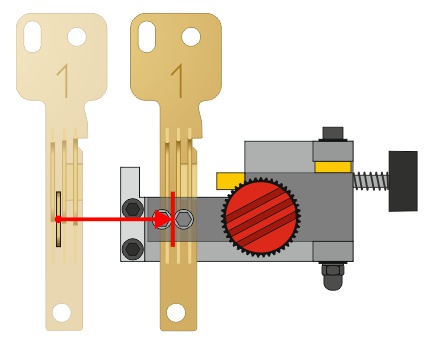
After the key has been correctly inserted, confirm the message on the control panel. The machine will automatically proceed to the next step of the procedure.
Warning
It is prohibited to use rotating brushes, especially metal ones, to clean the key. This can damage the calibration cut surfaces and result in incorrect calibration results.
3.2.10. Calibration scanning
The calibration scanning process is fully automatic and covers both sides of the key. No user intervention is required.
The current scanning progress is displayed on the control panel screen.
Warning
If the machine is unable to correctly identify the calibration cuts, a warning will be displayed. The most common cause is inaccurate cleaning of the key or incorrect positioning of the key due to additional support points being left protruding in the scanning unit clamp. To continue, remove the key from the scanning unit, acknowledge the warning message, and follow the recommended steps as instructed on the screen.
3.2.11. Ending the procedure and saving values
After scanning, a message confirming that calibration has been completed will be displayed on the control panel screen.
The calibration process is completed after the user confirms that the results have been saved.
Before approving the results, it is possible to display detailed calibration parameters. To do this, select the option to show details.
Tip
At this stage, it is also possible to repeat the calibration scanning process. This can be helpful, for example, if the calibration key is not sufficiently clean. In this case, use the return option and perform the scan again.
Warning
If any of the calibration parameters exceed the permissible values, the machine will display a warning with a suggested action. It is recommended to clean the key more thoroughly and repeat the scanning. Although it is possible to save such results, this is strongly discouraged as it may result in a decrease in the precision of the profiles and errors in the further operation of the machine.